1. Quick start
BlokFitt has two screens you'll use every day:
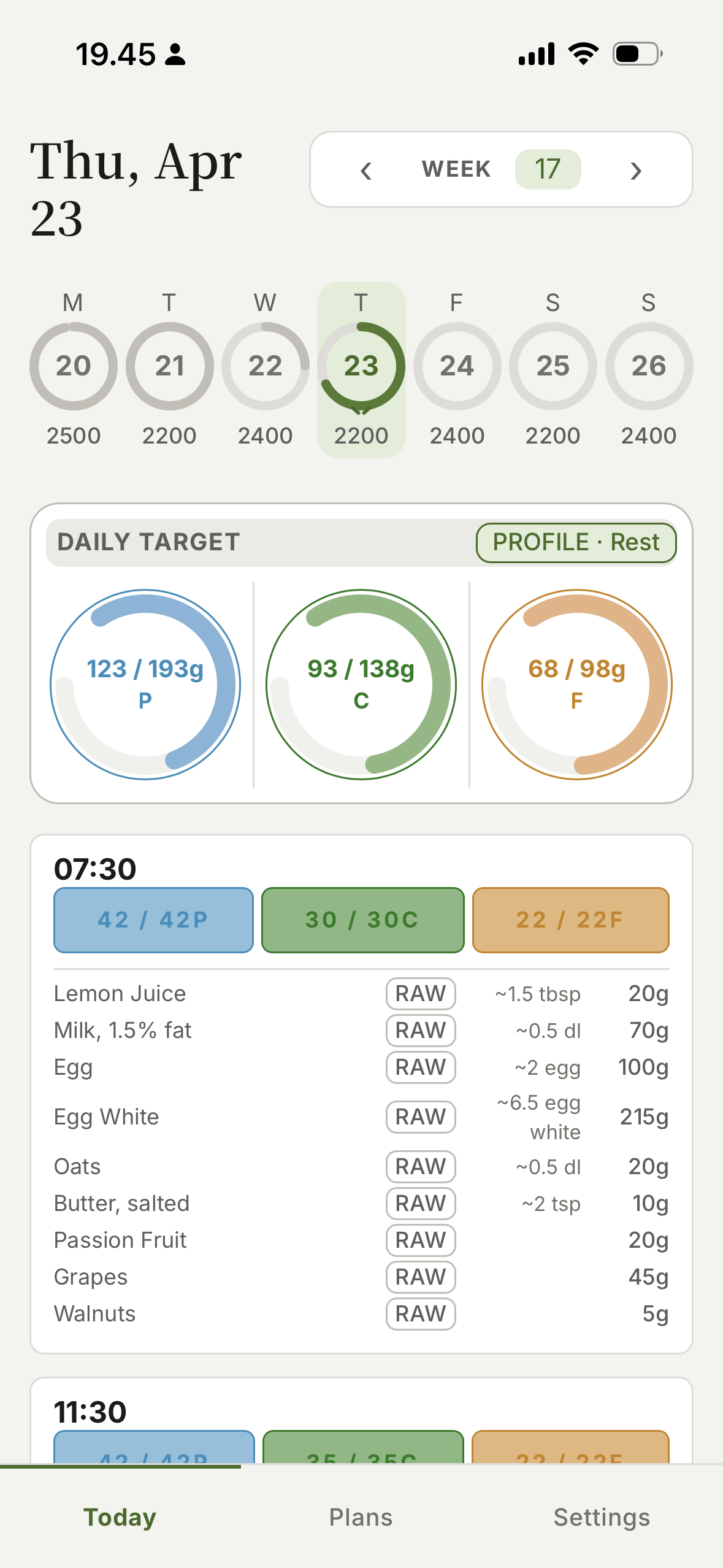
- Today — the active day's plan and meal log.
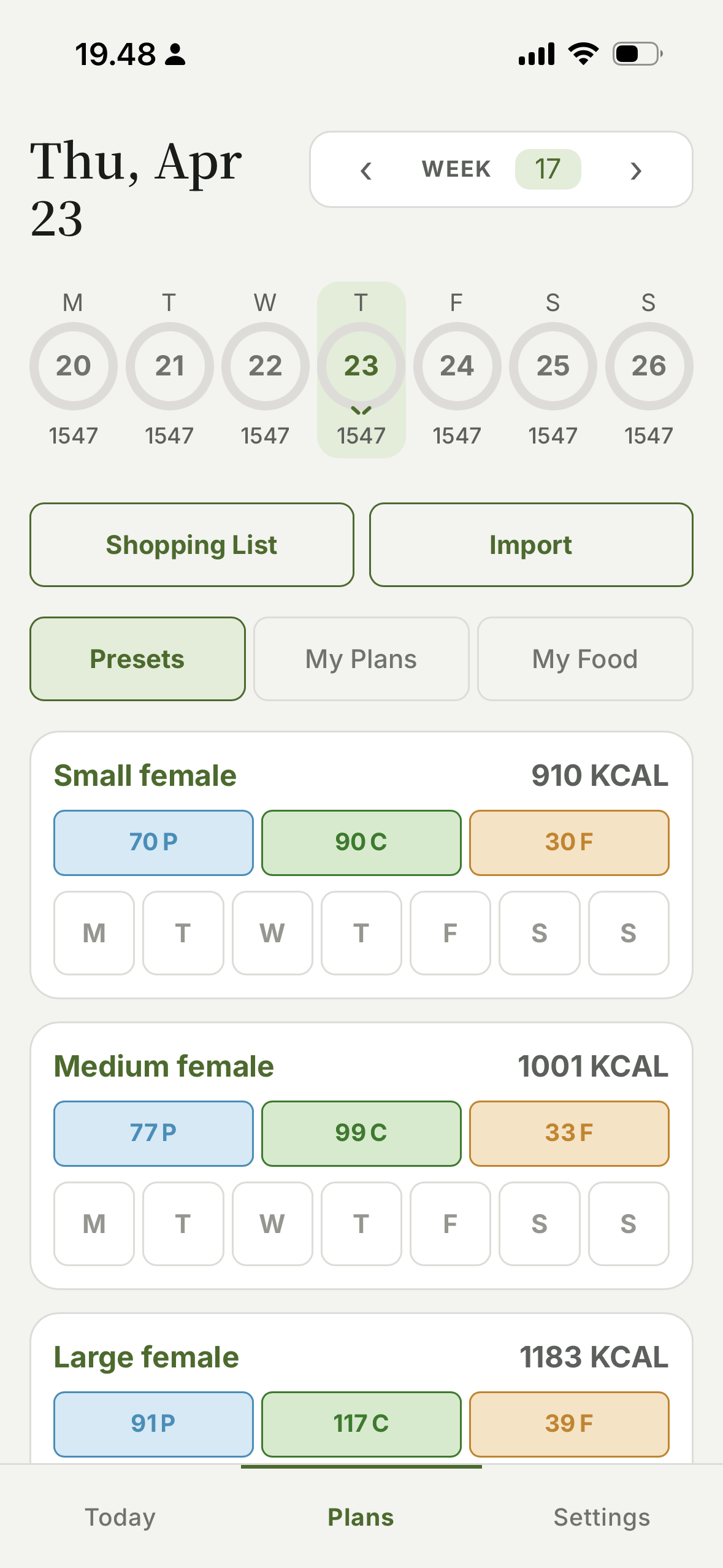
- Plans — where you build the plan that drives Today.
Today shows whatever Plans says for the current weekday. Build there, eat here.
How BlokFitt works — from logging today's meals to building day profiles, weekly rotation, themes, backup and sharing.
BlokFitt has two screens you'll use every day:
Today shows whatever Plans says for the current weekday. Build there, eat here.
BlokFitt works in any browser, but installing it as an app gives you full-screen launch from your home screen and offline access — no app store needed.
Once installed, BlokFitt opens in its own window with no browser bar, and continues to work even with no internet connection. Your data stays on the device.
Today is where you log what you ate. The day's rings fill as macros are logged.
The header shows the meal's target vs logged for each macro (e.g. 37 / 37P). Below it, every food you've added appears as a row:
When you exceed a macro, the pill collapses from 54 / 49C to +5C — so being over is obvious at a glance, with the amount over right there.
Tap Add food at the bottom of the meal. Search across the built-in catalog and your own foods, combos, and recipes. Pick one — it's added with a default portion you can adjust with the +/− buttons.
Your personal library. Three tabs:
Single ingredients. The built-in catalog lives here alongside any custom foods you create. To add a custom food: name + macros per 100g (protein, carbs, fat, fiber). Optionally a unit name (e.g. "egg" with 50g/unit) so portions can be expressed as ~2 eggs instead of just grams.
A bundle of foods you eat together regularly — for example "breakfast bowl" = oats + milk + banana + protein powder. Adding the combo to a meal adds every item at once. Edit the combo later and every meal using it updates.
Like combos, plus cooking-weight handling. Define the raw ingredient amounts; the recipe knows the total cooked weight; you can serve any portion size from it and the macros stay accurate. Use recipes when raw → cooked transformation matters (stews, sauces, baked goods).
When to use which: Foods for single items, Combos for repeat groupings, Recipes when raw vs cooked weight matters.
A complete day plan is made of three independent pieces. Each one stands alone and can be reused across days.
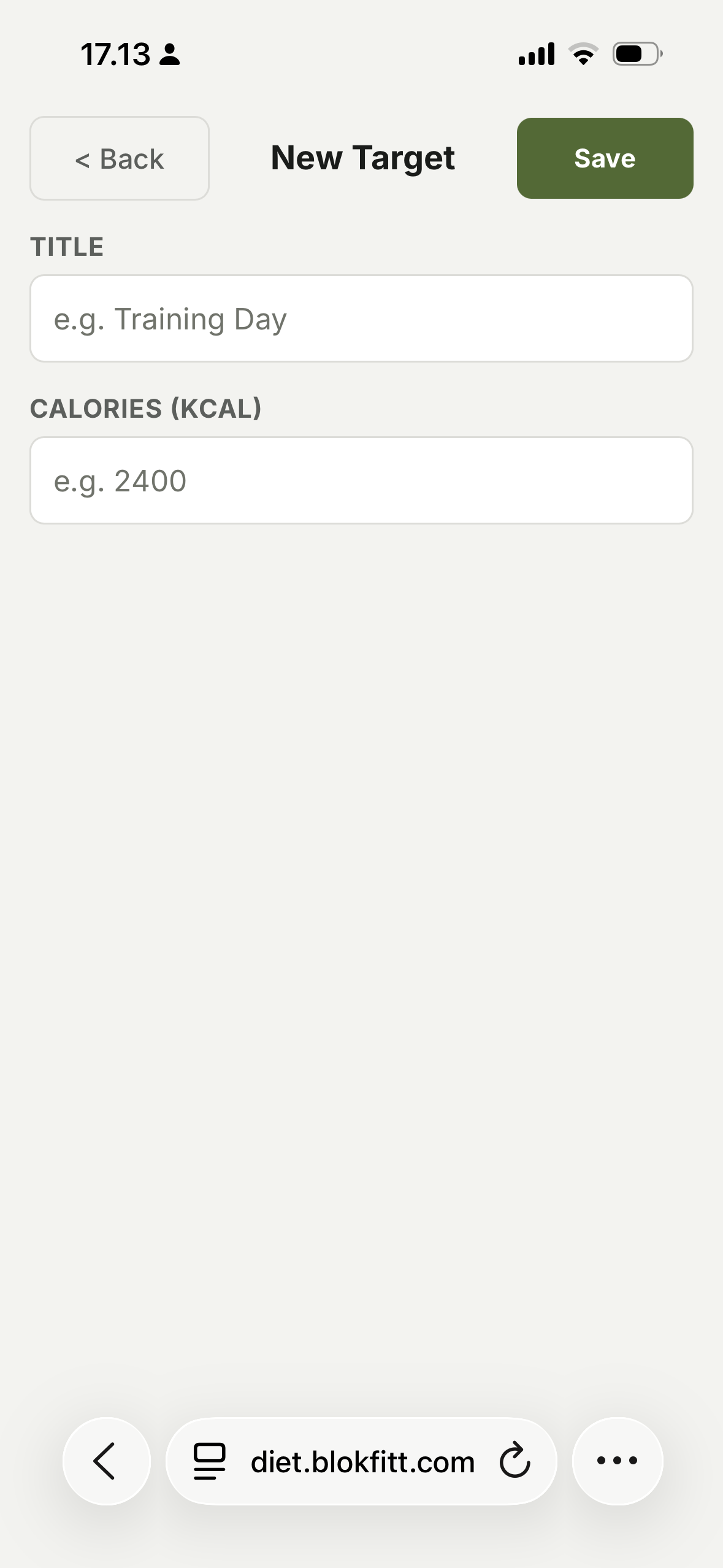
Your daily kcal goal. Numbers only.
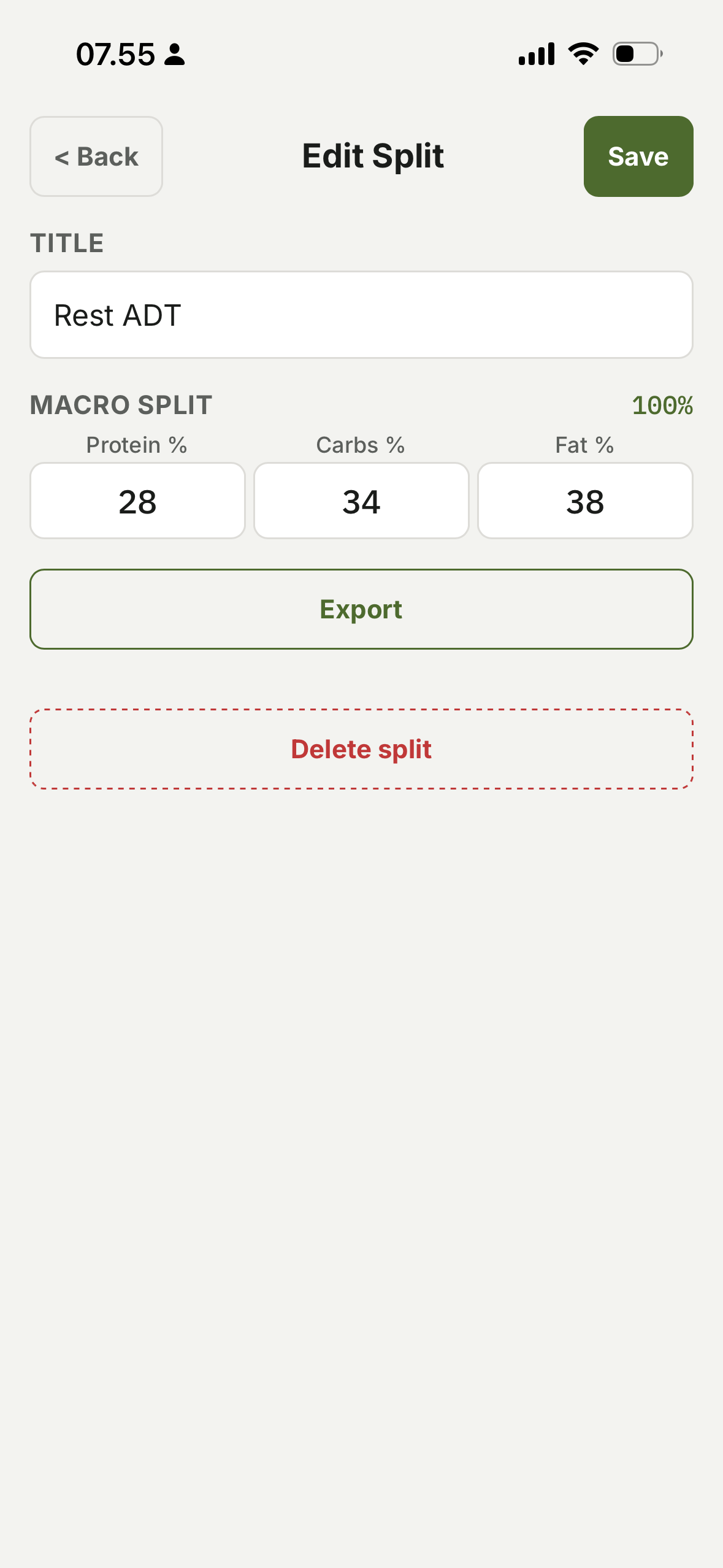
How that calorie total is divided between protein, carbs, and fat. Percentages must add to 100.
How many meals per day, and how the day's macros are distributed across them. Each meal gets its own percentage of the day's total.
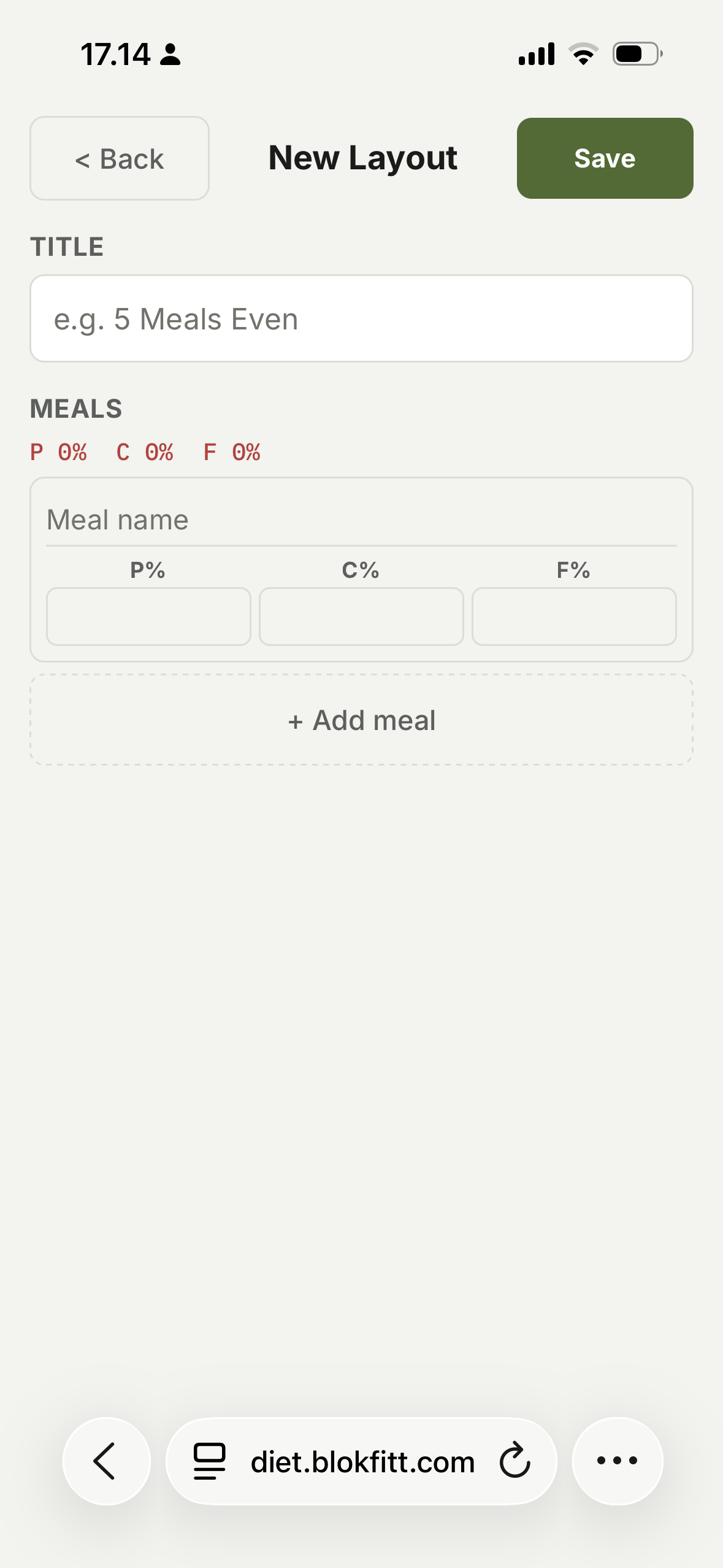
All three are required for a complete day. Missing any one and the day is incomplete.
A Day Profile bundles one target, one split, and one layout into a single named setup — for example "Training" or "Rest".
Once a profile is assigned to a weekday, switching that day's whole plan is one tap. Without profiles, you'd assign target, split, and layout to each weekday individually.
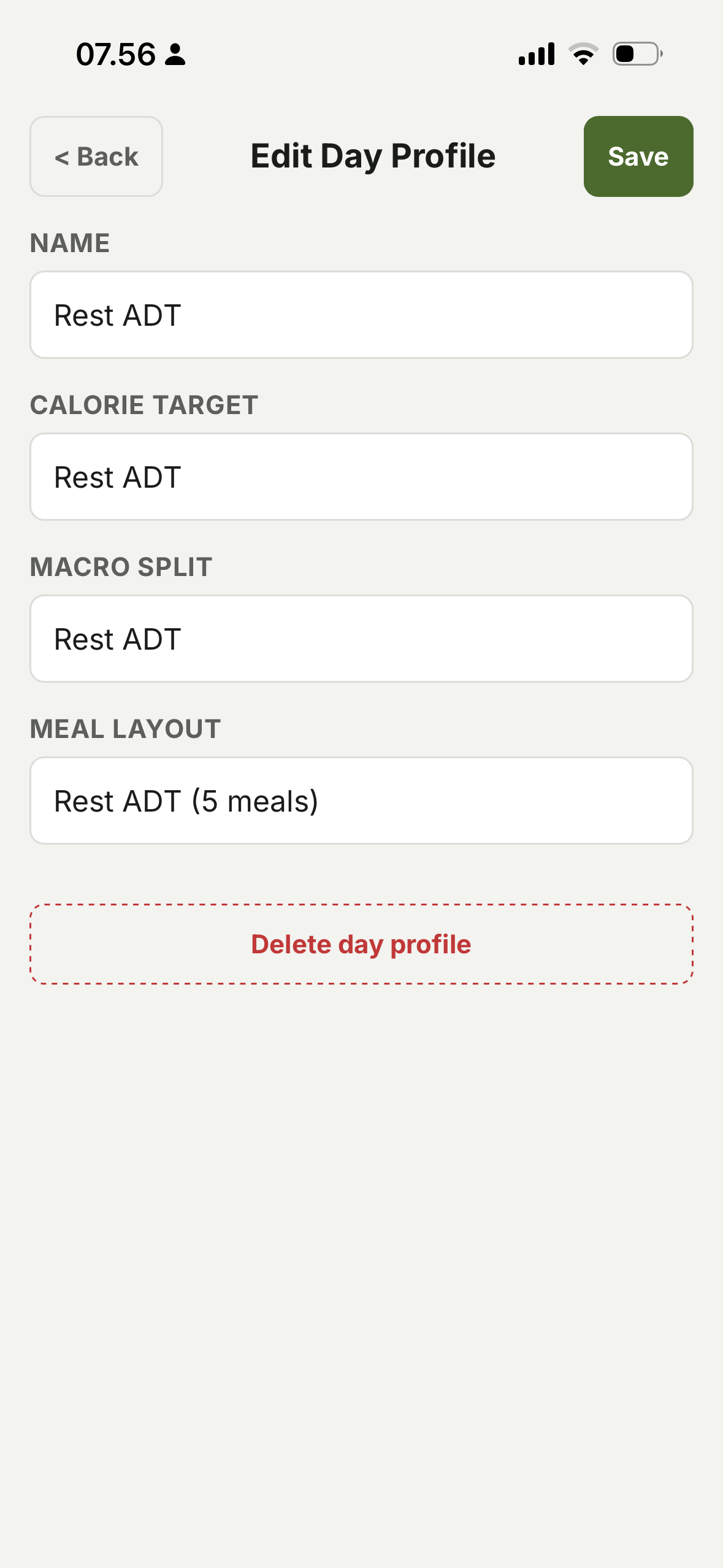
Day Profile takes priority when both a profile and individual blocks are assigned to the same day. Zone Profiles are mutually exclusive with the other two.
Every card in Plans has a row of day pills (Mo–Su). Tap a pill to toggle that card for that weekday. Highlighted pill = assigned.
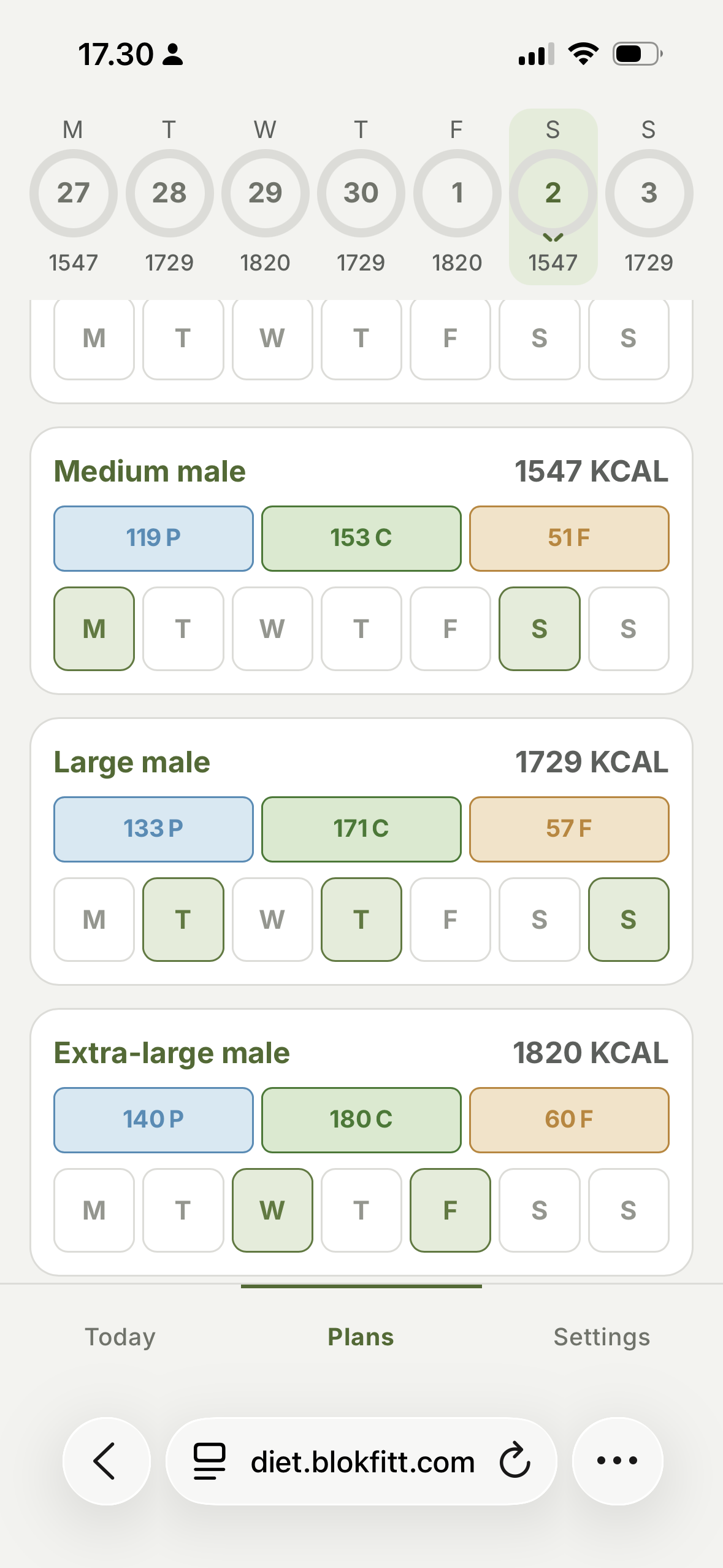
The same card can cover any combination of weekdays. Edit it once and every assigned day updates.
A shortcut for picking your daily plan. Based on the Zone diet's block system.
One block = 7g protein + 9g carbs + 3g fat ≈ 91 kcal. A day is a number of blocks chosen for your frame.
Zone Profiles replace any Day Profile or individual blocks on the same day — they're mutually exclusive.
By default, your plan repeats every week. If you want to alternate — heavy week / deload week, bulk week / cut week — turn on week rotation in Settings.
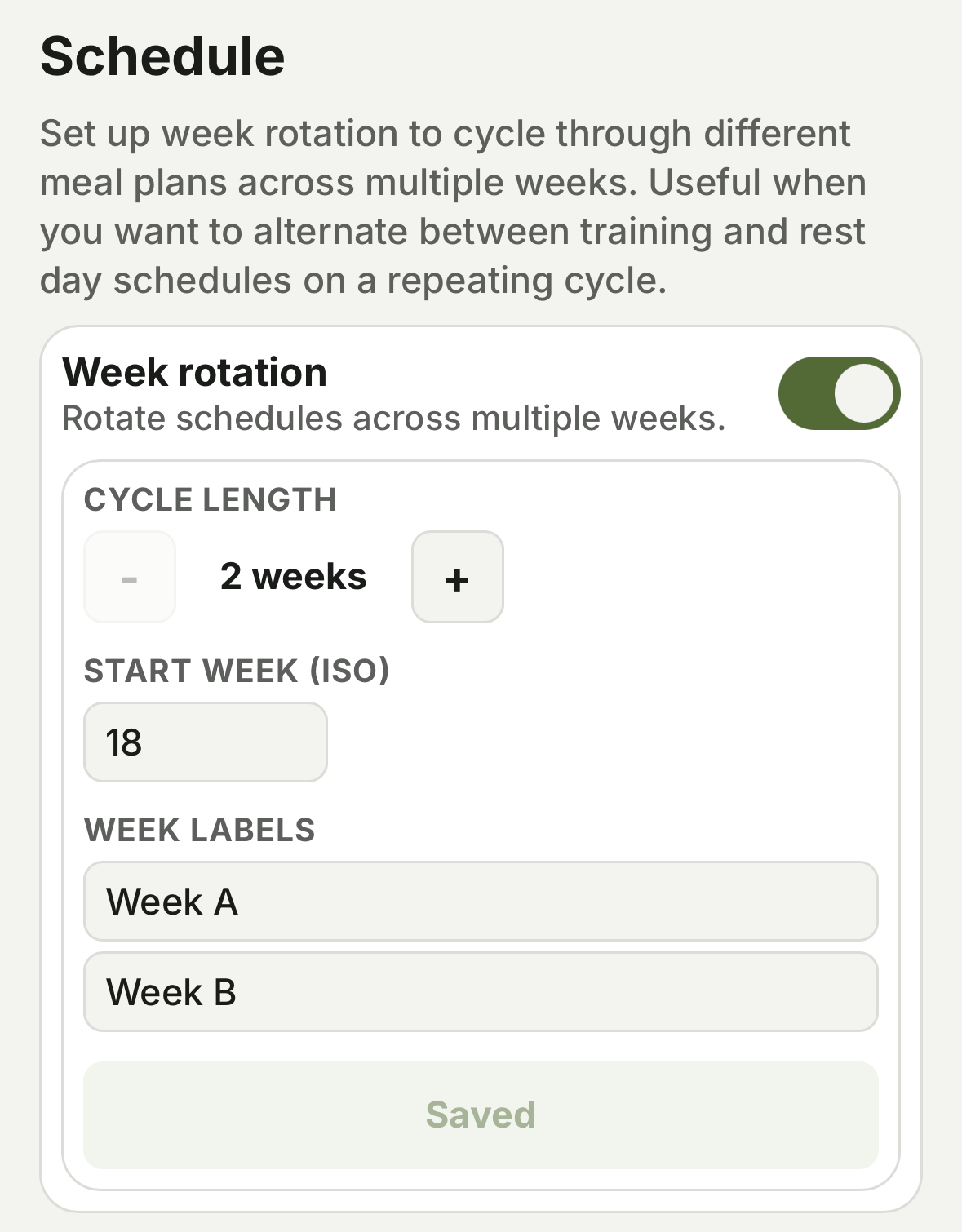
Each week in the cycle has its own day-pill assignments. Pick the active week in the Plans header to edit a different week.
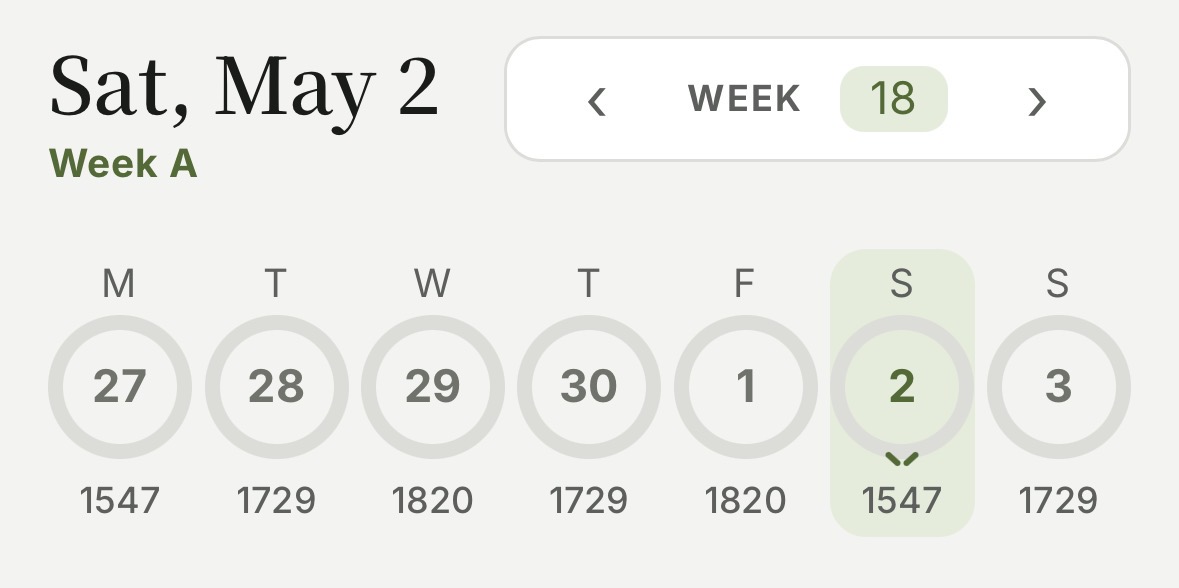
Today follows whichever week is currently active by ISO week number, so the rotation runs on its own once set up.
Open from the gear icon on Today.
English or Dansk. All labels, copy and food names translate.
The Default theme plus a handful of alternatives — Pea Soup, Moleskine, Wes Anderson, HUD, Blueprint, Gameboy, Mono Light, Mono Dark. Cosmetic only; no behaviour changes between themes.
When on, a small shape (●▲■) appears next to each P/C/F pill. Useful if you can't reliably tell the colour-coded macros apart — the shapes give you a colour-blind-safe second cue.
Enable, set cycle length, label each week. See Week rotation.
Backup, Restore, Share link, Clear all data. See Backup, restore & sharing.
Your data stays on your device. The app never sends it anywhere. These buttons let you move it on your terms.
Exports a single JSON file containing everything — foods, combos, recipes, plans, meal log, settings. Save it to Files, iCloud, Drive, or email yourself a copy.
Imports a backup file. Replaces your current data — confirm before running. Older backup formats still load.
Creates a URL containing your plan setup (profiles, targets, splits, layouts — not your meal log). Send it to a friend; they open it; they get the plan. Their meals and personal foods stay theirs.
Wipes everything on this device. Used to start fresh or if you're handing the device on. Back up first if you might want anything back.
Back up regularly. Browsers can clear site data without warning (low disk, manual privacy reset, etc.). A backup file is your only recovery — there is no cloud copy.
Pull-to-refresh on Today, or close the home-screen app and reopen. Updates land automatically on next launch when online.
Open Plans and check that weekday's day-pill assignments. Highlighted pill = assigned. Empty rings means nothing's assigned for that day.
Custom foods show up in search alongside built-ins. If a food still doesn't appear, check that you actually saved it (My Food → Foods tab).
Confirm the file came from BlokFitt's Backup button and isn't truncated (file should end with }). Files modified by other apps may fail to parse.
Settings → Clear all data. Back up first if you might want anything back.
Stuck on something not listed? Email — see contact below.
Found a bug, have a suggestion, or want to share feedback? Get in touch: